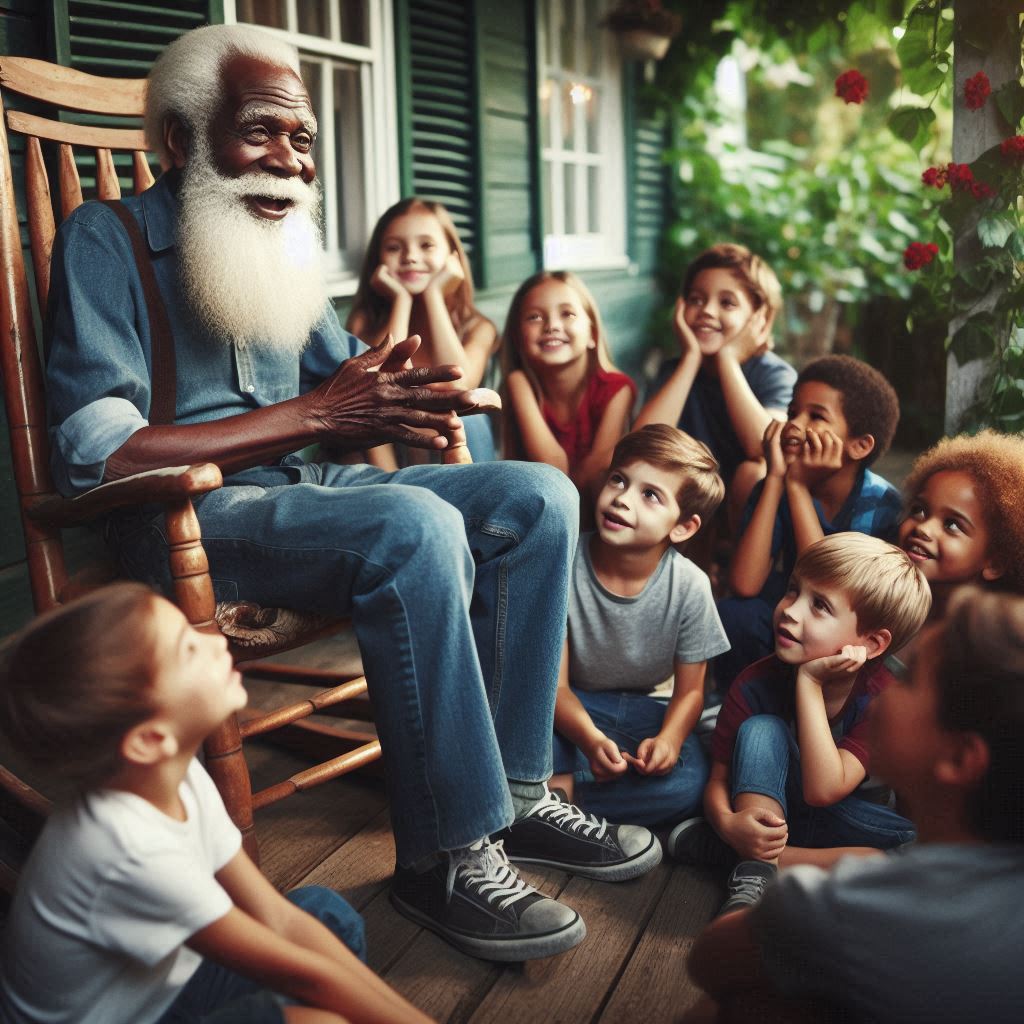
Black and white photography is all about light, shadow, and contrast. But even the best-captured black and white image can benefit from a little post-processing. This is where the magic happens!
Post-processing is like adding the finishing touches to a painting. It’s a chance to enhance the image, correct any flaws, and give it your unique style. Black and white There are many tools and techniques available, both in free and paid software.
Basic Adjustments:
- Contrast: This controls the difference between the darkest and lightest areas of your image. Increasing contrast can make your photo more dramatic.
- Brightness: Adjusts the overall lightness or darkness of the image.
- Levels: A tool to adjust the distribution of tones in your image. You can use it to increase contrast or create a specific mood.
- Curves: A more advanced tool that gives you precise control over the tonal range. You can create dramatic effects by manipulating the curve.
Black and White Conversion:
While your camera might have a black and white setting, converting a color image to black and white in post-processing often gives you more control.
- Channel Mixer: This tool lets you combine the red, green, and blue channels to create different black and white looks.
- Black and White Presets: Many editing software programs offer pre-made black and white presets. These can be a great starting point for your edits.
Adding Drama:
- Dodging and Burning: These techniques involve selectively lightening (dodging) or darkening (burning) areas of your image. It’s a traditional method used to add depth and dimension.
- High Pass Sharpening: This technique can enhance details and make your image appear sharper.
- Grain: Adding grain can give your image a classic film look.
Creating Moods:
- Toning: Adding a subtle color tint to a black and white image can create a specific mood. For example, a blue tone can create a cold, melancholic feeling, while a sepia tone can give a vintage look.
- Vignettes: Darkening the edges of your image can draw attention to the center and create a dramatic effect.
Remember, the goal of post-processing is to enhance your image, not to create something artificial. Less is often more. Black and white Start with subtle adjustments and gradually build up the effect you desire. Experiment with different techniques and find your own unique style.
With a little practice, you’ll be able to transform your black and white photos into stunning works of art.

Basic Adjustments
Have you ever looked at a photo and thought, “Something’s just not right?” Maybe it’s too dark, or the colors are a bit dull. Don’t worry, you don’t need to be a pro to fix it! Basic adjustments are like adding the finishing touches to a painting. They can make a huge difference in how your photo looks.
What are basic adjustments?
They’re the simple tools you can use to tweak your photos and make them look their best. Think of them like the knobs on a radio. You can turn them up or down to get the sound you want. With photos, you can adjust things like brightness, contrast, and color.
Let’s break it down:
- Brightness: This controls how light or dark your photo is. If it’s too dark, you can increase the brightness. If it’s too light, you can decrease it.
- Contrast: This makes the difference between the light and dark areas in your photo more or less noticeable. High contrast makes the photo look more dramatic, while low contrast makes it softer.
- Color: You can adjust the overall color of your photo or focus on specific colors. You can make colors more vibrant or muted.
Why are basic adjustments important?
Even the best photos can benefit from a little tweaking. Sometimes, the lighting wasn’t perfect when you took the picture. Or maybe the colors just don’t pop as much as you’d like. Basic adjustments can help you fix these little problems and make your photos look amazing.
How to start? Most photo editing apps and computer programs have tools for basic adjustments. You can usually find them in a section called “adjustments,” “edit,” or “image.” Don’t be afraid to experiment! It’s fun to see how different changes affect your photo.
Remember, the goal is to enhance your photo, not to change it completely. A little goes a long way. Start with small adjustments and gradually increase them until you’re happy with the results.
So, the next time you take a photo, don’t be afraid to give it a little makeover. With basic adjustments, you can transform your snapshots into works of art!
Channel Mixer Magic
Imagine being able to transform a boring photo into something extraordinary with just a few clicks. That’s the power of the Channel Mixer! It might sound complicated, but it’s actually a super cool tool that can help you create amazing effects.
What is the Channel Mixer?
Think of a photo as a sandwich. It has three layers: red, green, and blue. The Channel Mixer lets you play around with these layers to change how your photo looks. You can make colors brighter, darker, or even change them completely!
Black and White Magic
One of the coolest things you can do with the Channel Mixer is to create stunning black and white photos. By adjusting the red, green, and blue channels, you can create different shades of gray and add drama to your images. It’s like painting with light!
Color Tweaking
But the Channel Mixer isn’t just for black and white. You can also use it to enhance colors, create vintage looks, or even make your photos look like they were taken on a different planet! By experimenting with the different channels, you can discover endless possibilities.
Tips for Using the Channel Mixer
- Start small: Make tiny adjustments to see how they affect your photo.
- Experiment: Don’t be afraid to try different combinations.
- Use presets: Many photo editing programs have built-in presets that you can use as a starting point.
- Practice: The more you use the Channel Mixer, the better you’ll become.
Remember, the Channel Mixer is a powerful tool, but it’s important to use it wisely. Overdoing it can make your photos look unnatural. The key is to find a balance between creativity and subtlety.
So, the next time you’re editing a photo and feeling a bit bored, give the Channel Mixer a try. You might be surprised at the amazing results you can achieve!
Dodging and Burning
Imagine you’re painting a picture. You’ve got your colors, your brush, and a blank canvas. As you paint, you might add more color to one area, or make another area darker. That’s kind of like dodging and burning in photography.
Dodging and burning are techniques used to make certain parts of a photo lighter or darker. It’s like adding the finishing touches to your picture.
Dodging is when you make a part of your photo lighter. It’s like shining a little extra light on that spot. You might dodge a person’s face to make it stand out, or lighten a part of the sky to make it look brighter.
Burning is the opposite. It makes a part of your photo darker. It’s like shading a part of your picture. You could burn a shadow to make it deeper, or darken a background to make the main subject pop.
These techniques used to be done in a darkroom, but now we can do it with computers. There are special tools in photo editing software that let you dodge and burn with precision.
Why is it important?
Dodging and burning can really make a difference in your photos. It can help to:
- Create drama: By making some parts of your photo really light and others really dark, you can create a dramatic effect.
- Add depth: Dodging and burning can help to make your photos look more three-dimensional.
- Highlight important parts: You can use these techniques to draw attention to the main subject of your photo.
- Fix mistakes: Sometimes, photos can come out a bit too bright or too dark in some areas. Dodging and burning can help fix these problems.
It’s important to be careful when dodging and burning. If you do it too much, your photo can look fake or unnatural. The key is to use these techniques subtly to enhance your image.
So, the next time you’re editing a photo, remember to try dodging and burning. It might just take your photos to the next level!
Texture and Grain
Have you ever looked at a picture and thought it felt rough or smooth? That’s because of texture! Texture is how something feels when you touch it, but in a photo, it’s how it looks like it would feel.
Imagine a photo of a brick wall. You can almost feel the rough bumps of the bricks just by looking at it. That’s texture! Or maybe a photo of a soft, fluffy cloud. That gives you a different feeling, right? That’s texture too!
Now, let’s talk about grain. Grain is like tiny dots in a photo. You might see it more in older photos or in photos taken in low light. It can make a picture look a bit grainy, like looking at a photo through a screen door.
Some people don’t like grain, but others think it adds character to a photo. It can make a picture feel old-fashioned or mysterious. Sometimes, photographers even add grain to their photos on purpose to give it a certain look.
Texture and grain can work together to make a photo more interesting. For example, a grainy photo of a rough, wooden door can look really cool. The grain adds to the feeling of the rough wood.
So, the next time you look at a photo, pay attention to how it makes you feel. Is it smooth or rough? Can you see any tiny dots? That’s texture and grain at work!
Presets and Profiles
Ever wondered how some photos look so amazing? It’s not just about taking a great picture; it’s also about how you edit it. That’s where presets and profiles come in! Think of them as special filters that can instantly change the look of your photo.
What’s a Preset?
A preset is like a recipe for editing your photo. It’s a collection of adjustments like brightness, contrast, color, and sharpness that can be applied to your image with just one click. Imagine having a bunch of different looks saved, ready to use whenever you want. You can find presets for all sorts of styles, from dreamy and soft to bold and vibrant.
What’s a Profile?
A profile is similar to a preset, but it focuses more on the overall look and feel of your photo. It’s like adding a filter to your image. Profiles can adjust colors, tones, and even the way your camera’s sensor captured the light. They’re often used to correct color casts or to give your photos a specific film-like look.
Why Use Presets and Profiles?
- Save time: Instead of adjusting each photo individually, you can apply a preset or profile to quickly get the look you want.
- Consistency: If you love a certain style, you can use the same preset or profile on multiple photos to create a cohesive look.
- Experiment: Presets and profiles are a great way to try out different styles and see what works best for you.
- Improve your editing skills: By analyzing presets and profiles, you can learn about different editing techniques and apply them to your own photos.
Important Tip: While presets and profiles can be a lot of fun, it’s essential to use them as a starting point. Don’t be afraid to adjust the settings to make the photo truly yours. Your personal touch is what will make your photos stand out.
So, the next time you’re editing a photo, give presets and profiles a try! You might be surprised at how much they can enhance your images. Remember, it’s all about having fun and experimenting to find your unique style.
Would you like to know how to create your own presets or profiles?